How to Create a Signal (Alert message)
This provides a detailed dive in to setting up signals from your trading platform (a.k.a. an Alert message from TradingView, TrendSpider, etc).
Written By Zac White
Last updated 3 months ago
Creating a Signal
Click the Add Signal button, at top right of the Signals page. The Add New Signal modal will popup.
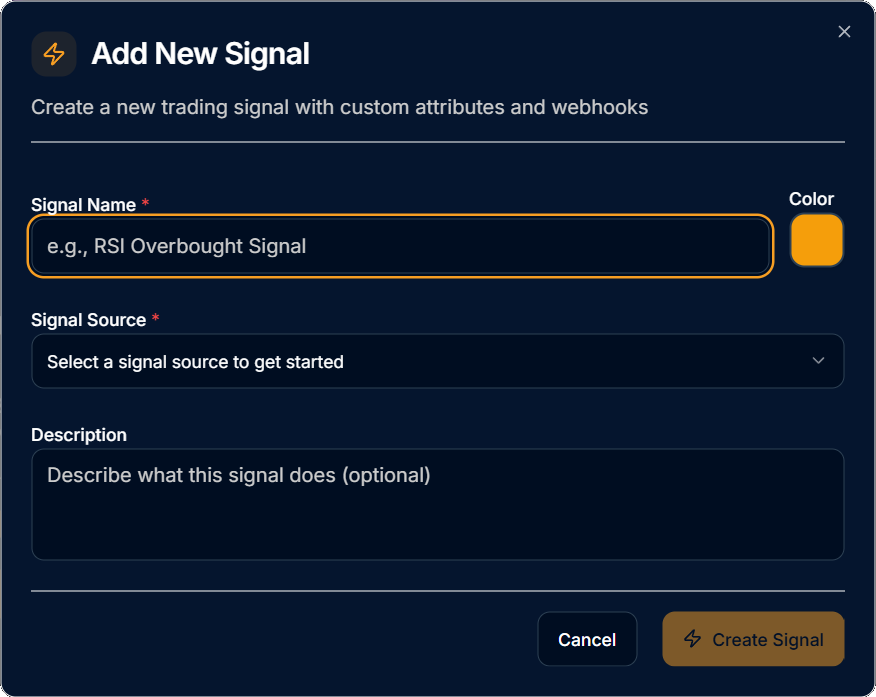
Fill in the Signal Name.
Select a Signal Source. The Signal Source may not be changed once the Signal is created. If the source needs to be changed, delete the Signal and create a new Signal.
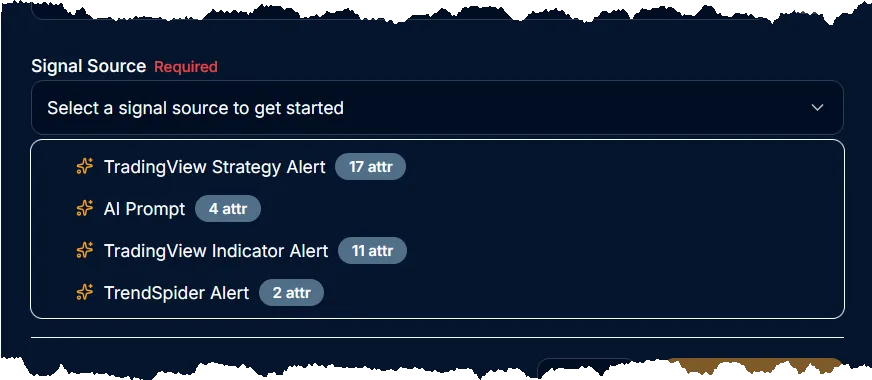
TradingView Indicator Alert is for alerts created from indicators.
Note: A separate signal is need for buying alerts, selling alerts, and an optional flatten alert.TradingView Strategy Alert is for alerts created from strategies. A strategy contains the attributes necessary to send buy signals, sell signals, and an optional flatten signals, all within a single Signal.
TrendSpider Alert is for alerts created from TrendSpider.
Note: A separate signal is need for buying alerts, selling alerts, and an optional flatten alert.AI Prompt. This generates a basic prompt with instructions for an AI agent on where to send the curl Post, and how to build the JSON content for SharkSignals.
Provide an optional description for the signal.
Copy & Paste Webhook Data
Time to copy the data from SharkSignals to your TradingView or TrendSpider Alert.
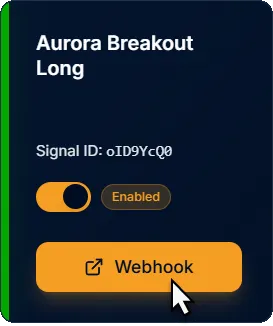
Click on the Webhook button.
Copy the Webhook URL.
❗Warning: Do Not share the secret key from your Webhook URL with anyone or on social media. It is found after …/signal/ (e.g. sharksignals.com/signal/624044c2-4799-4fef-9ade-e13d-42be-8db3-ee092e6de64f/…), The secret key could potentially be used by anyone to trigger a signal on your account.
The $signalId is also needed to trigger a signal. However, it is more visible.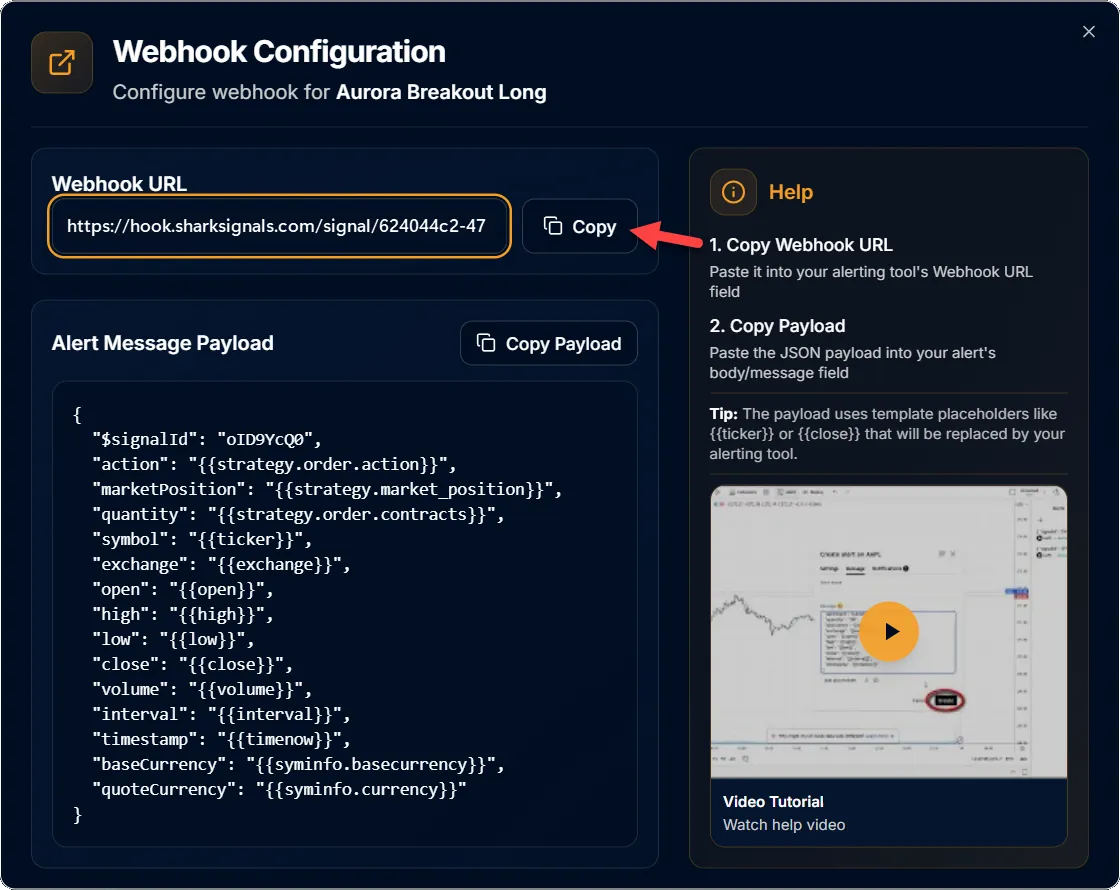
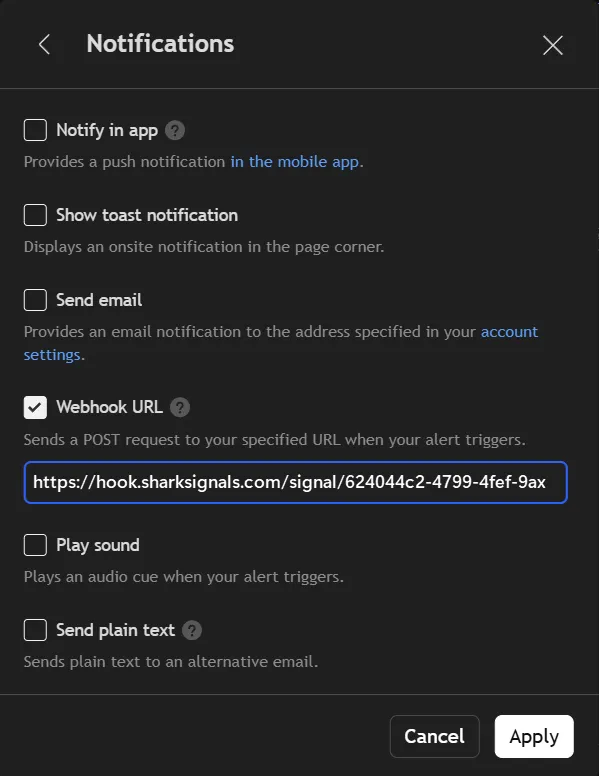
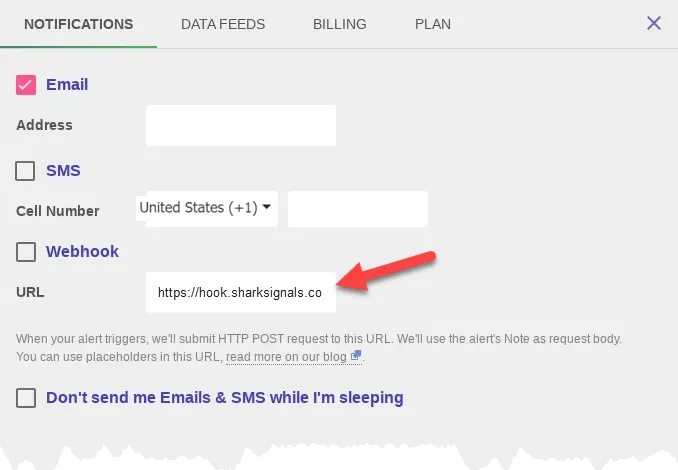
Paste the webhook URL in to your charting platform. Consult your platform documentation for more detailed information on where exactly the webhook URL is pasted.
TradingView: Paste the webhook into the Alert » Notifications » Webhook URL field.
TrendSpider: Paste the webhook into the Account & Settings » Notifications tab » Webhook URL field.
Copy the Alert Message Payload data. The data is a JSON packet. Per ‘2.1. Select a Signal Source’ (see above) the placeholders in the data will change.
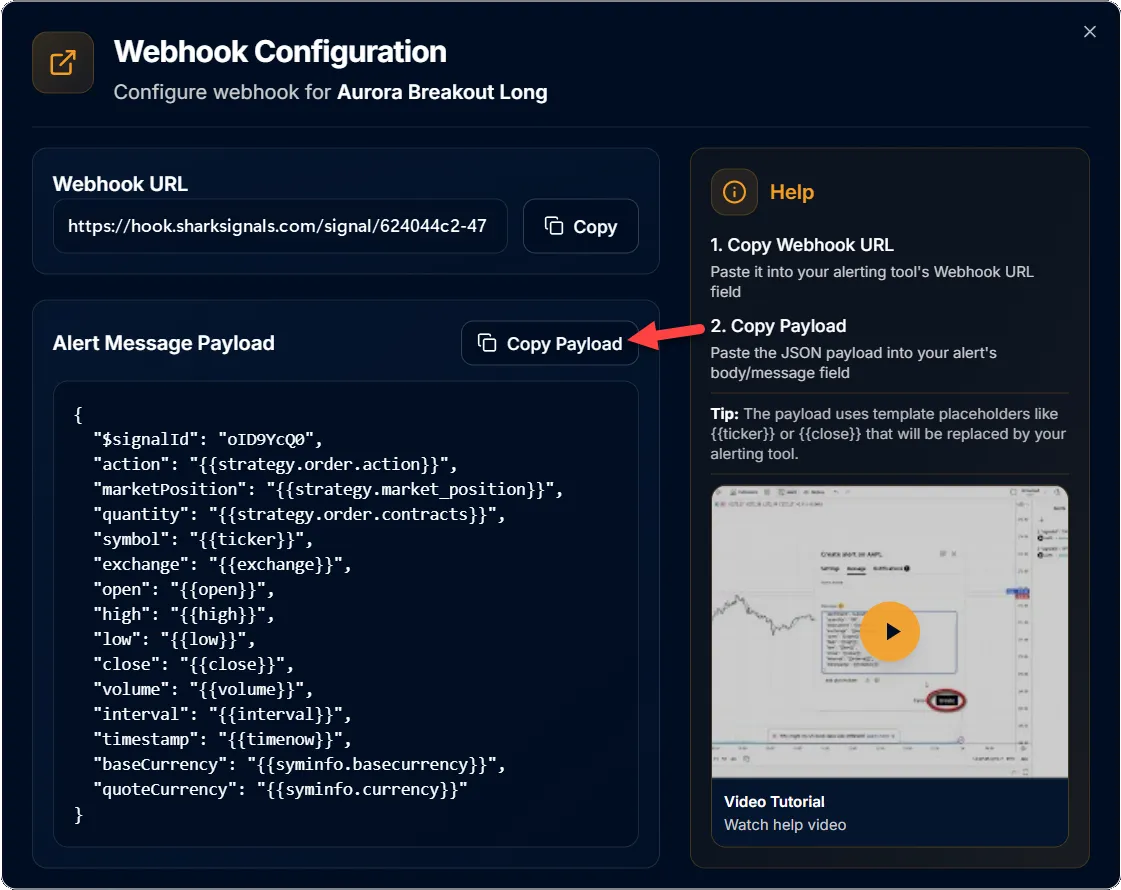
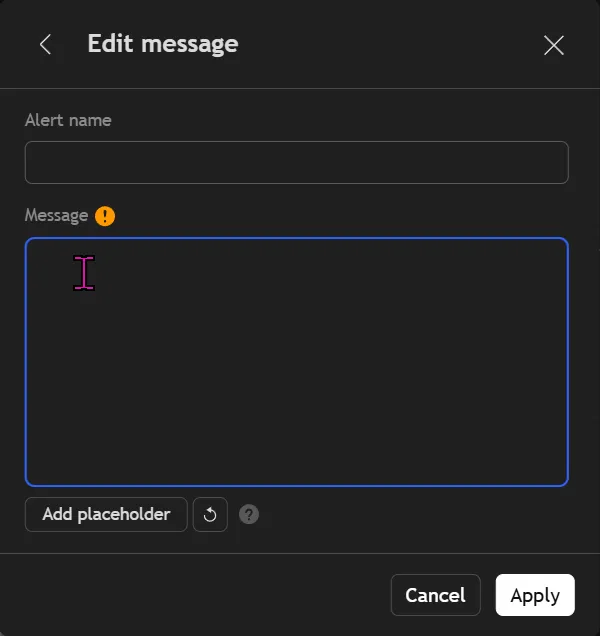
Paste the Alert Message Payload data in to your charting platform. Consult your platform documentation for more detailed information on where exactly this data is placed.
TradingView: Paste the data into the Alert » Edit Message » Message field.
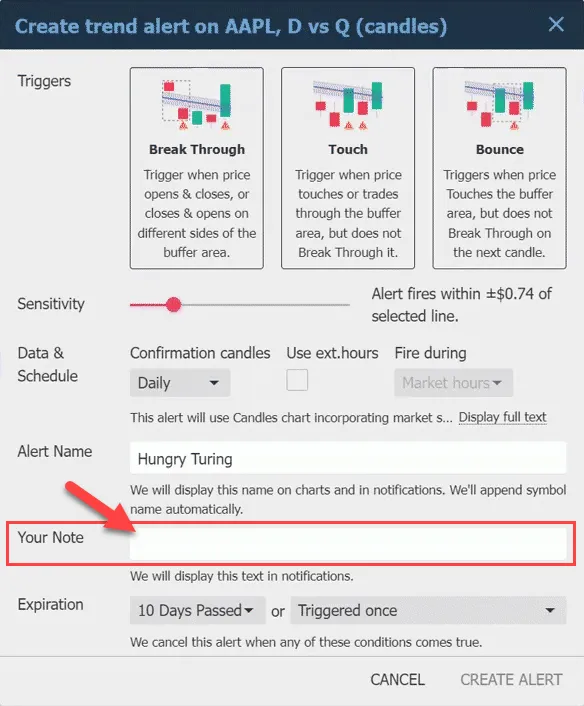
TrendSpider: Paste the data into the Alert » Your Note field. Each Alert type places the Your Note field in different locations.
❗Warning: Do Not share the secret key from your Webhook URL with anyone or on social media. It is found after …/signal/ (e.g. sharksignals.com/signal/624044c2-4799-4fef-9ade-e13d-42be-8db3-ee092e6de64f/…), The secret key could potentially be used by anyone to trigger a signal on your account.
The $signalId is also needed to trigger a signal. However, it is more visible.
Finished. ✔
The next step is to set up a Trade Plan.
Create a Signal Group
Organize your Signals by placing them into a group.
Click the ‘+ Add Group’ button, at top right. The ‘Add New Group’ modal will appear.
Fill in a Group Name.
Provide an optional description for the group.
Click the Create Group button to save when done.
Moving Signals in to a Group
To move a Signal in to a group, simply use your mouse to drag the Signal on to the group.
Was this helpful?
Still need help? Ask the team