Getting Started
This quick start guide will walk you through setting up your first signal. The set up is extremely easy, and you will be executing trades in no time.
Written By Zac White
Last updated About 1 month ago
Step 1. Get NinjaTrader
Install the NinjaTrader Desktop version. If you already have the latest version of NinjaTrader Desktop installed, skip ahead to the next step.
⁍ Sign up with NinjaTrader here to download and install the desktop software.
Step 2. Install the SharkSignals NinjaTrader Client
Install the SharkIndicators + SharkSignals Client software.
⁍ Download the installer from here.
ⓘ See Installing the SharkSignals Client for more detailed instructions.
Video of the getting started steps.
Step 3. Add Broker & Accounts
The SharkSignals Client will automatically transfer all of your accounts from NinjaTrader to SharkSignals. NinjaTrader manages the broker(s), therefore setting up a broker in SharkSignals is not necessary.
Run NinjaTrader.
Go to the NinjaTrader » Control Center » New menu » SharkIndicators » SharkSignals. Log-in to the SharkSignals client.
Sign into SharkSignals, and go to the Brokers page. On this page you will see all of your NinjaTrader accounts have been added. Allow a few moments for processing.
ⓘ See How to Set Up Your Broker for more detailed instructions.
Step 4. Add a Signal (a.k.a Alert message)
This is were Alerts from any trading platform (TradingView, TrendSpider, AI agent, etc.) that can send webhook alert messages, or a Curl command from any source, is set up.
ⓘ See How to Set Up a Signal for more detailed instructions.
Step 5. Create a Trade Plan
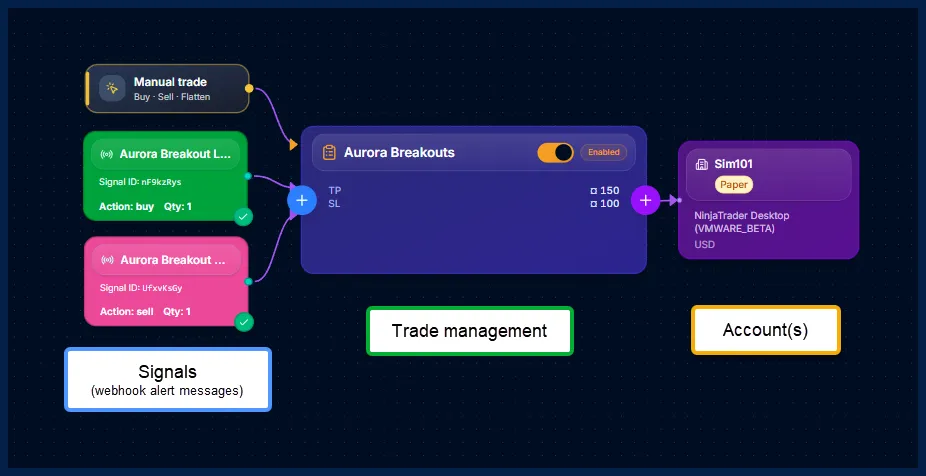
The Trade Plan connects Signals (webhook alert messages) to your broker account(s) or paper/simulated accounts. Including, setting up the risk/reward trade management.
ⓘ See How to Set Up a Trade Plan for more detailed instructions.
Finished. ✔
Was this helpful?
Still need help? Ask the team